10 days free trial! Use the fully functional app without restrictions!

Free trial!

Your Timer

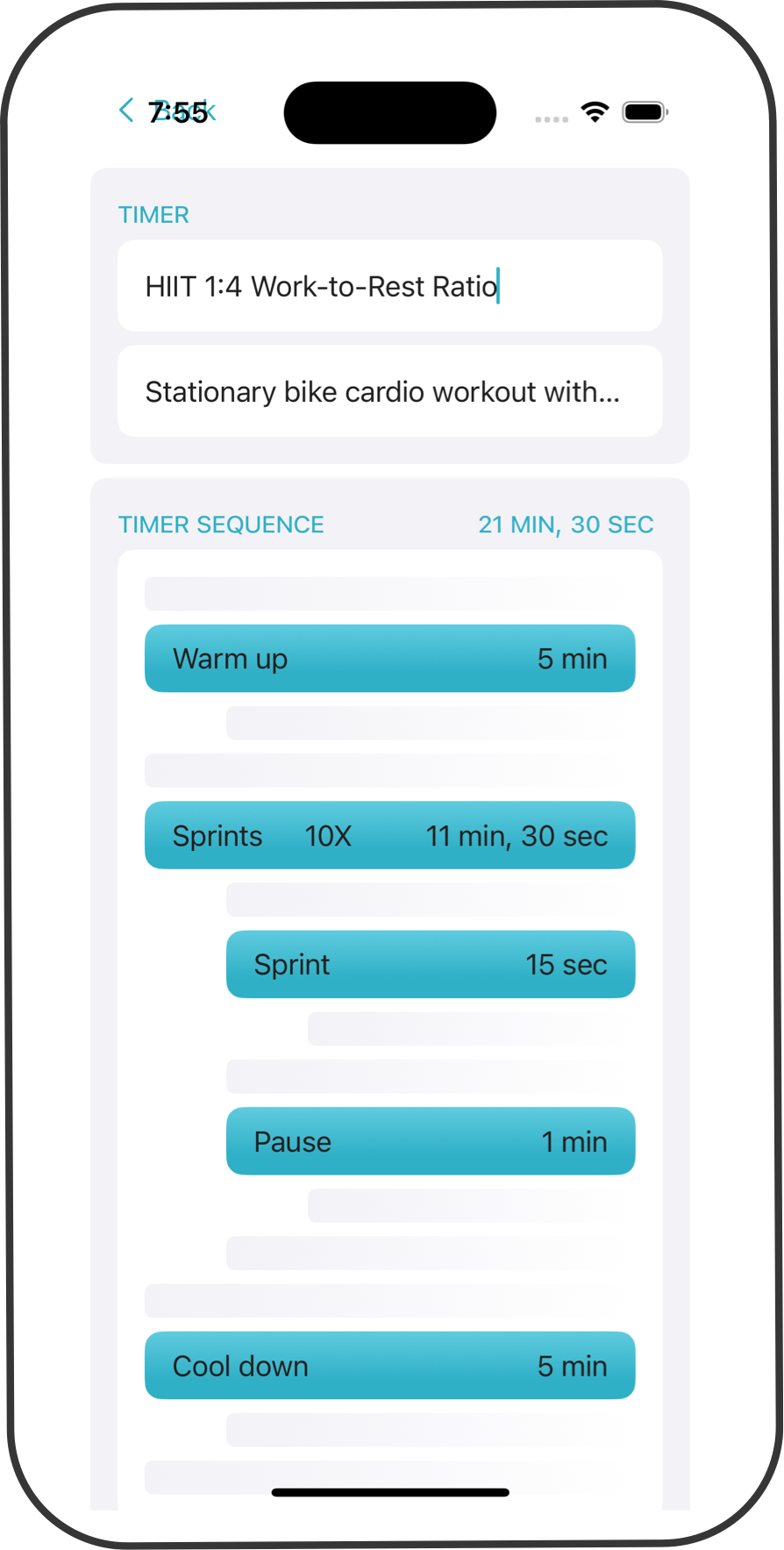
Flexible timer for HIIT, Tabata, Pomodoro and more

Fully flexible

Looking for a workout timer, a Pomodoro timer to focus at work or something completely different like a timer to make sure you end your important presentation next week in time?
With YOUR TIMER you can make all of these yourself, exactly the way you want.

Easy to use

A timer is simply a sequence of steps. A step can be a task with a duration or a sequence again. This enables you to structure your timer and easily repeat some parts of it.
You define the sequence of your timer with an easy to use drag and drop interface. For each step you can set the exact duration and add an explanatory description if you want.
You want to change something? No problem, just move the step to its new position or swipe left to delete it.

Notifications

At the start of a step, you can let YOUR TIMER read aloud the title and description, while the app is running in the foreground. At the end of a step, you can get notified with or without sound.
Note: the read aloud function uses the voice set in Settings - Accessibility - Spoken Content - Voices.
Get Started

Step by step instructions to create a Pomodoro Timer

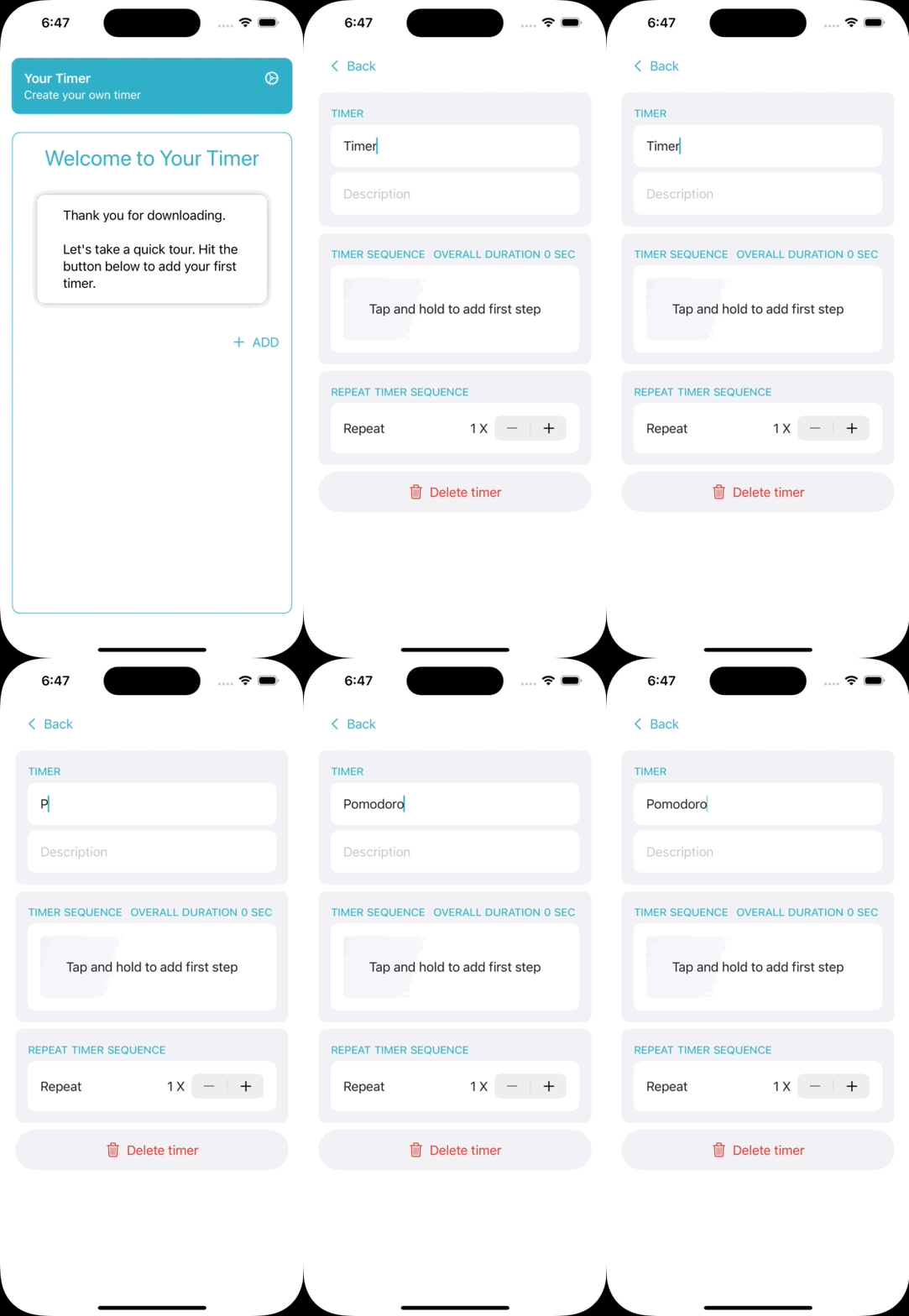
Create the timer
  • Click ADD on the main screen to create a new timer.
  • On the edit timer screen you can change the timer title and add an optional Description
  • A timer is a Sequence of Steps. A Step can be a task with duration or a Sequence again. This enables you to structure your timer and easily repeat parts of it.
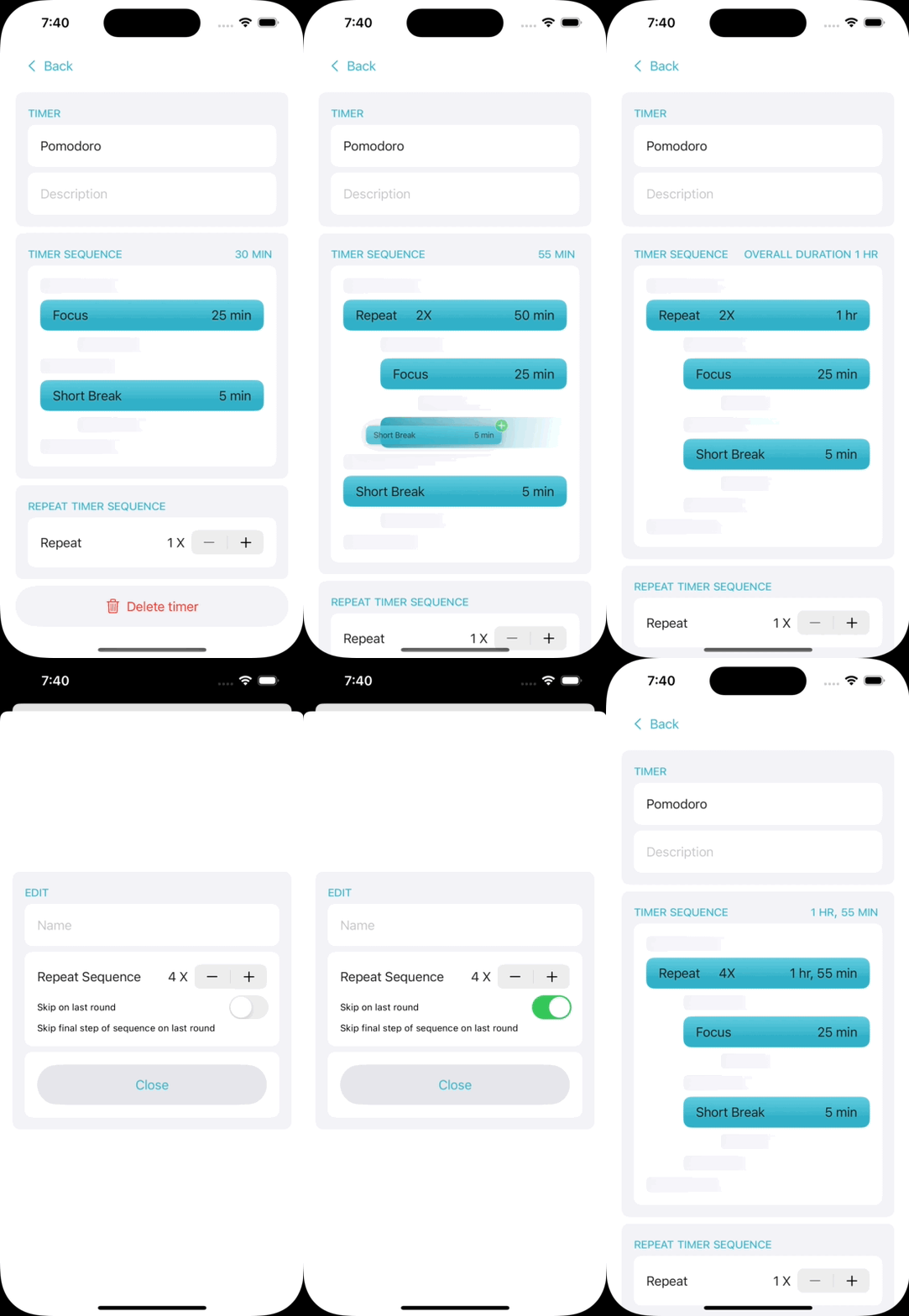
Create the Focus - Short Break Sequence
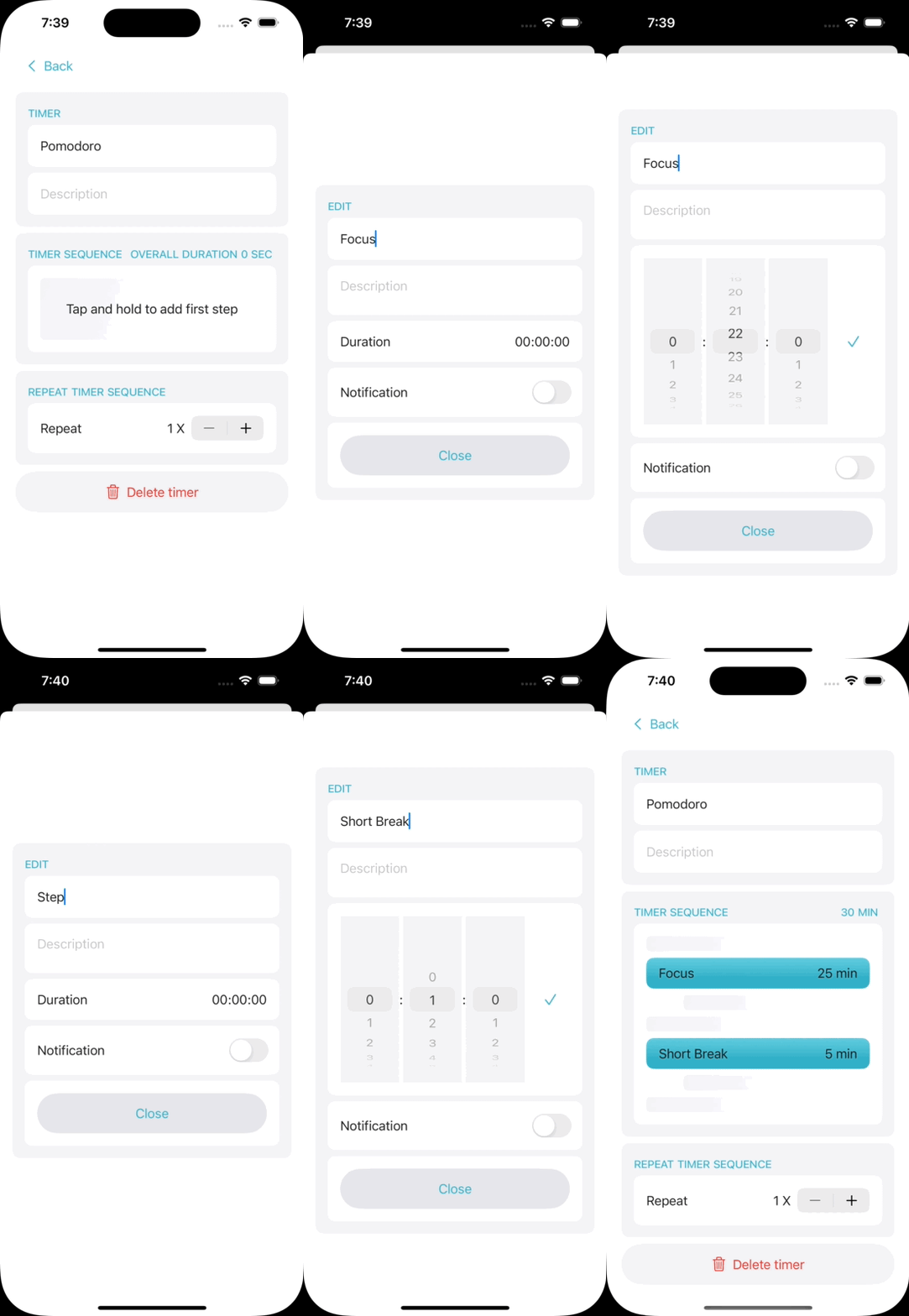
  • Tap and hold the empty placeholder to create the first step.
  • Name it Focus and set the duration to 25 minutes.
  • Tap and hold the placeholder below to add the next step. Name it Short Break and set its duration to 5 minutes.
  • You can also add a Notification with optional sound to each step to get notified when the unit has ended.
Repeat the Focus - Short Break Sequence
  • Swipe left on the Focus step to see the options.
  • Tap on the repeat symbol to create a sequence starting with this step.
  • Tap and hold the Short Break and move it into the newly created sequence.
  • Tap the Repeat step and set repeat to 4 to repeat the whole sequence four times.
  • When repeating a sequence, you have the option to drop its last step on the last round. Mark Skip on last round to drop the short break on the fourth round and end the sequence with the Focus step.
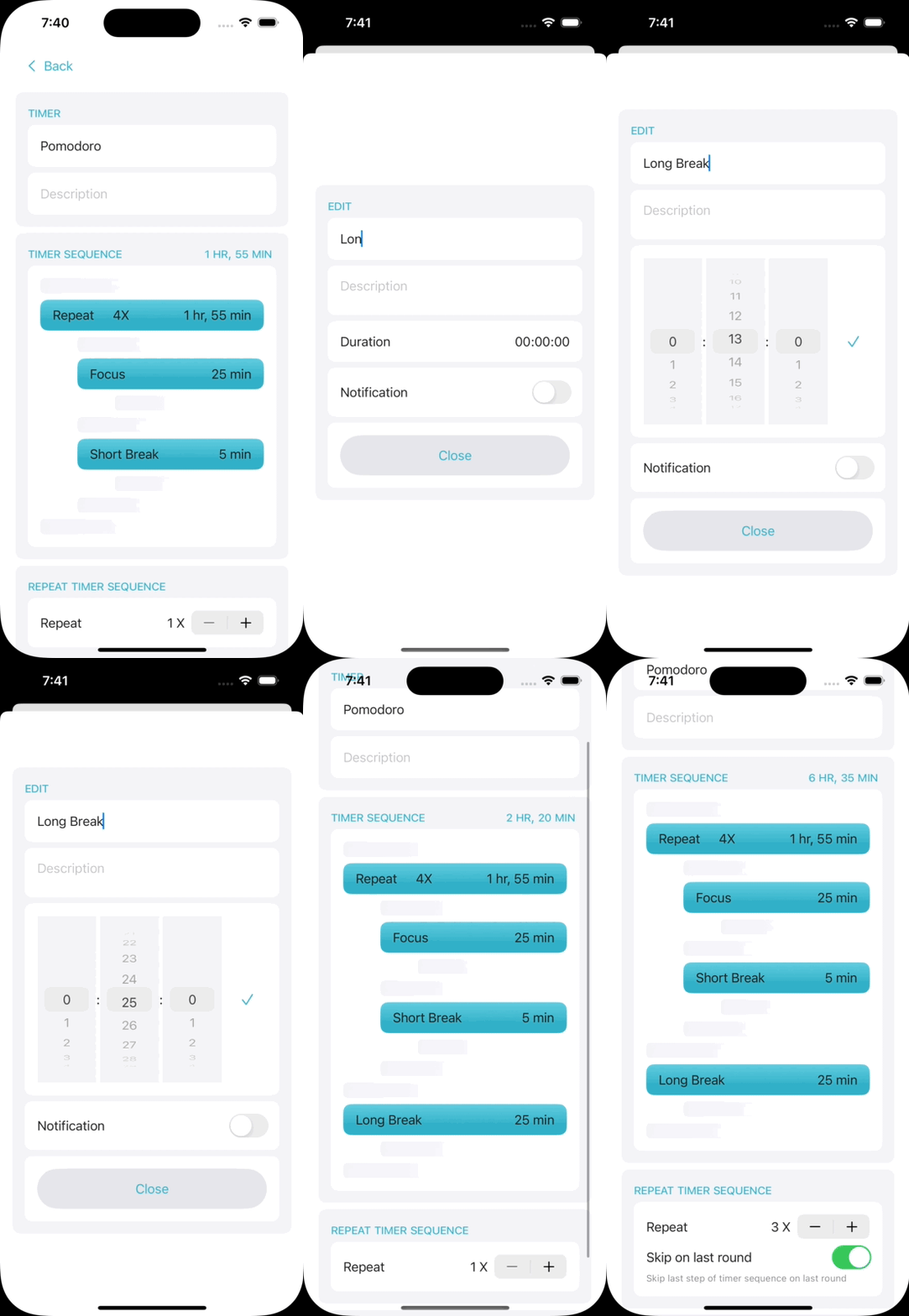
Add the Long Break and finish your new timer
  • You are nearly done. Tap and hold the last placeholder to add the Long Break.
  • All that is left, is to repeat this whole timer sequence. Set Repeat Sequence to 3 and mark Skip on last round again.
  • Now you can go back and run your timer. Congratulations!
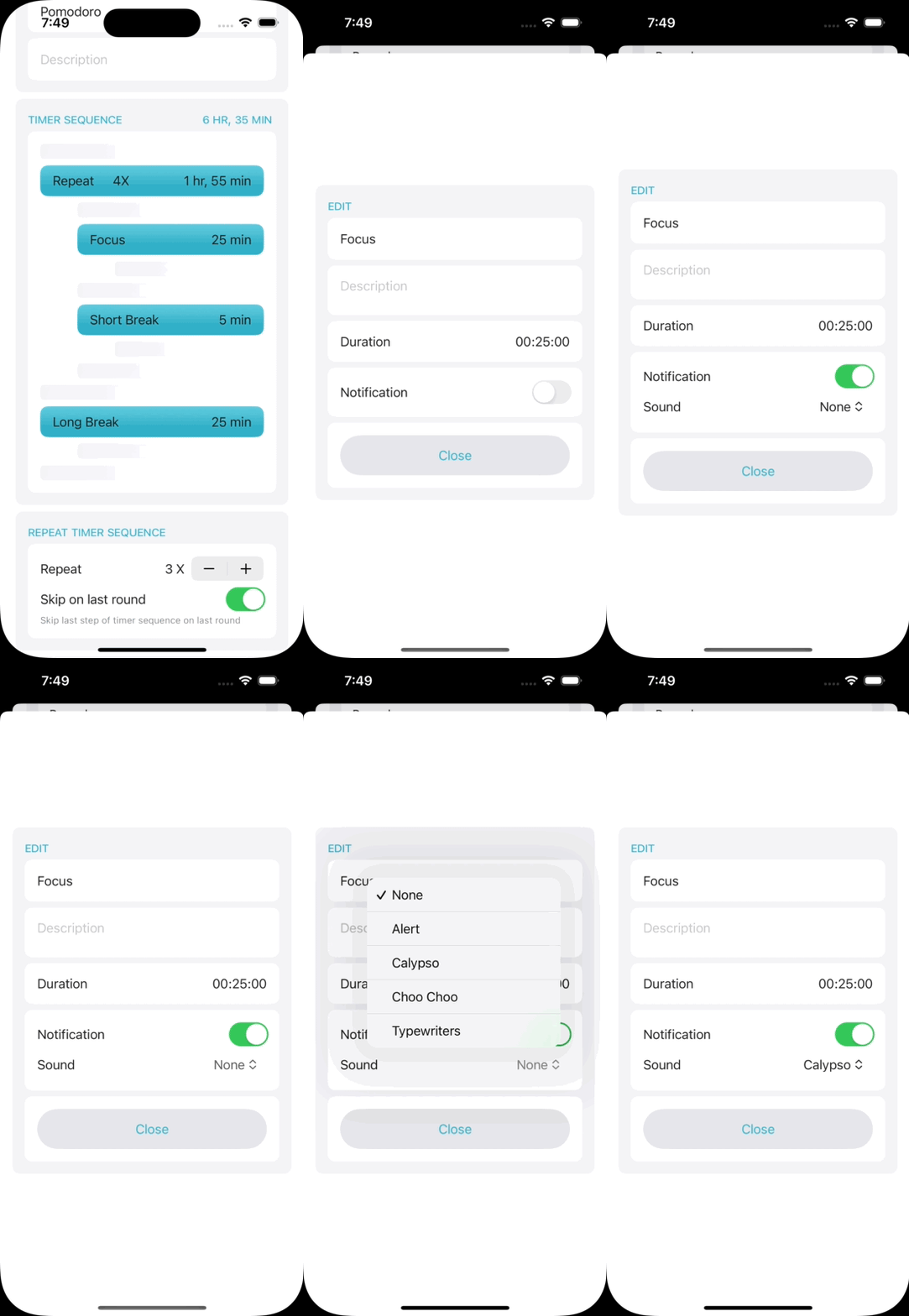
Add a notification
  • To add a Notification tap the Step to edit it.
  • Check Notification and select an optional sound.
  • Note! The sound is only played if you are using the app in the foreground. Otherwise you get the standard notification with a notice about the step that has ended and the one that starts now.